Do you know that you can create a LinkedIn website typically refers to building a personal or business website that complements your LinkedIn profile—but if you’re asking how to create a website using LinkedIn itself, there’s a need for clarification that.
✅ Option 1: Create a Website That Complements Your LinkedIn Profile
This is the most common approach. You build a website (e.g., on WordPress, Wix, Squarespace) and link it to your LinkedIn profile to showcase:
- Your portfolio
- Projects
- Resume or CV
- Testimonials
- Blog posts or thought leadership
Steps:
- Choose a Website Builder:
- Free: WordPress.org (self-hosted), Wix (limited features), Carrd
- Paid: Squarespace, Webflow, WordPress.com Pro
- Design Your Website:
- Use a clean, professional theme
- Include sections like “About Me,” “Projects,” “Contact,” and “Blog”
- Connect to LinkedIn:
- Add your website link to your LinkedIn profile under “Contact Info”
- Share blog posts or updates from your site on LinkedIn regularly
✅ Option 2: Use LinkedIn as a Mini Website
LinkedIn itself can act like a personal website if you optimize your profile:
Steps:
- Customize Your LinkedIn URL:
- Go to your profile → Edit public profile & URL → Create a clean, professional link
- Optimize Your Profile Sections:
- Use the “Featured” section to showcase PDFs, links, videos, or portfolio items
- Add rich media to your “Experience” and “Projects” sections
- Create a LinkedIn Company Page (Optional):
- If you want to promote a brand like “Clutter to Declutter,” create a LinkedIn Page
- Add a logo, description, and website link
- Post updates, articles, and events
💡 Bonus Tip:
If you want to create a landing page specifically for LinkedIn visitors (e.g., “Welcome LinkedIn Connections!”), you can build that on your website and share the link in your profile or posts.
Here is a sample of what it looks like on LinkedIn.
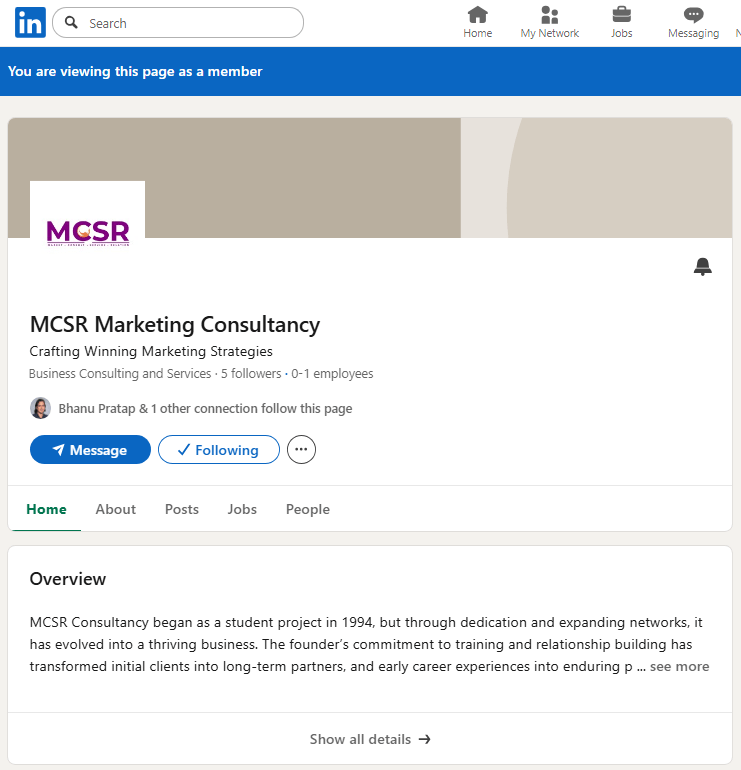
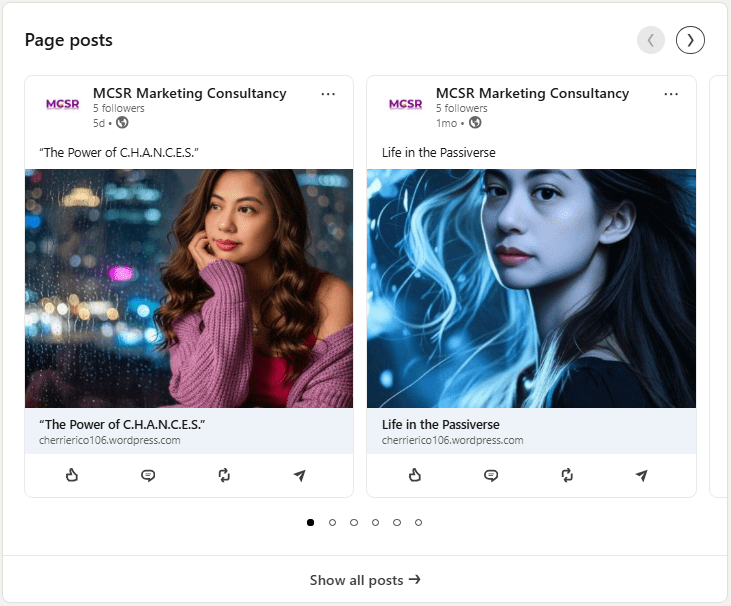
 MCSR MARKETING CONSULTANCY
Leave a comment